Navigating the AWS Console doesn’t have to feel like decoding alien technology. Whether you’re a beginner or a seasoned cloud architect, mastering this powerful interface is your gateway to seamless cloud management, automation, and innovation. Let’s dive in.
What Is the AWS Console and Why It Matters

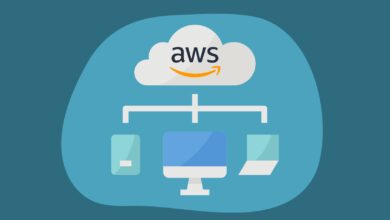
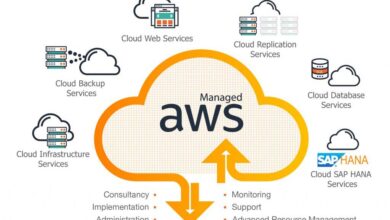
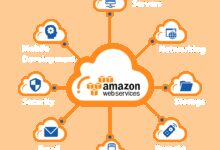
The AWS Management Console is the web-based user interface provided by Amazon Web Services (AWS) that allows users to interact with and manage their cloud resources. It serves as a central hub for configuring, monitoring, and operating services like EC2, S3, Lambda, RDS, and hundreds more—all through a visual dashboard.
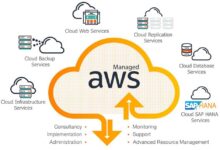
Core Purpose of the AWS Console
The primary goal of the AWS Console is to simplify cloud infrastructure management. Instead of relying solely on command-line tools or APIs, users can leverage a point-and-click environment to launch instances, set up databases, configure security policies, and analyze performance metrics.
- Provides intuitive access to over 200 AWS services
- Enables quick prototyping and testing of cloud environments
- Supports real-time monitoring and troubleshooting
According to AWS’s official documentation, the console is designed for both technical and non-technical stakeholders who need visibility into cloud operations.
How It Compares to CLI and SDKs
While the AWS Command Line Interface (CLI) and Software Development Kits (SDKs) offer programmatic control, the AWS Console excels in accessibility and ease of use. It’s ideal for learning AWS services, performing one-off tasks, or conducting audits.
“The AWS Console is the front door to the cloud—where exploration begins and complex architectures become tangible.”
However, for automation and DevOps workflows, tools like AWS CLI, CloudFormation, or Terraform are often preferred. The console complements these tools by offering a visual representation of what scripts and templates create behind the scenes.
Getting Started: Accessing the AWS Console
Before diving into service configurations, you need secure access to the AWS Console. This process involves creating an AWS account, setting up Identity and Access Management (IAM), and logging in securely.
Creating an AWS Account
To access the AWS Console, visit aws.amazon.com and click “Create an AWS Account.” You’ll need to provide basic information such as your email, password, and payment method. AWS offers a Free Tier that includes limited usage of many services for 12 months, making it perfect for beginners.
- Sign up using a personal or business email
- Enter credit card details (required even for Free Tier)
- Verify your identity via phone call or SMS
Once registered, you’re redirected to the AWS Console login page, where you can begin configuring your environment.
Understanding Root User vs IAM Users
Upon account creation, you become the root user—the most privileged identity in your AWS account. However, AWS strongly recommends against using the root user for daily tasks due to security risks.
Instead, create IAM (Identity and Access Management) users with limited permissions. IAM allows you to define roles, policies, and multi-factor authentication (MFA) to enforce least-privilege access.
- Root user has unrestricted access to all resources and billing
- IAM users are custom identities with tailored permissions
- MFA should be enabled on both root and privileged IAM accounts
Best practice: Use the root user only to create your first IAM administrator user, then lock it away.
Navigating the AWS Console Interface
The AWS Console interface is designed for scalability and ease of navigation across a vast array of services. Once logged in, you’re greeted with a dashboard that provides quick access to services, recent activity, and support tools.
Dashboard Overview and Key Sections
The console homepage features several critical components:
- Services Menu: A searchable dropdown listing all available AWS services, organized by category (e.g., Compute, Storage, Database)
- Recent Services: Displays the last few services you accessed for faster navigation
- Support Center: Access technical support, billing inquiries, and service health status
- Account & Billing: View usage reports, costs, and payment methods
You can customize the dashboard by pinning frequently used services or adding widgets for cost monitoring and resource health.
Using the Global Search Bar
One of the most underutilized yet powerful features of the AWS Console is the global search bar at the top of the screen. It allows you to quickly find services, resources, documentation, and even support cases.
For example, typing “S3” instantly filters to Amazon S3, while searching “EC2 instances” takes you directly to the running virtual machines page.
Pro Tip: Use the search bar to jump between regions—just type the region name (e.g., “us-east-1”) to switch contexts instantly.
This feature dramatically reduces navigation time, especially in large-scale environments with dozens of active services.
Managing AWS Services via the Console
The true power of the AWS Console lies in its ability to manage a wide variety of cloud services through a unified interface. From launching virtual servers to building serverless applications, the console makes it all possible with minimal friction.
Launching an EC2 Instance Through the Console
Amazon Elastic Compute Cloud (EC2) is one of the most widely used services in AWS. Launching an instance via the console is straightforward:
- Navigate to the EC2 dashboard from the Services menu
- Click “Launch Instance”
- Choose an Amazon Machine Image (AMI), such as Amazon Linux 2 or Ubuntu
- Select an instance type (e.g., t2.micro for Free Tier)
- Configure instance details (network, subnet, IAM role)
- Add storage (default is usually sufficient)
- Set up security groups (firewall rules)
- Review and launch
You’ll be prompted to select or create a key pair for SSH access. Once launched, the instance appears in the EC2 console with real-time status updates.
For more details, refer to the official EC2 launch guide.
Creating and Managing S3 Buckets
Amazon Simple Storage Service (S3) is the backbone of cloud storage in AWS. Using the AWS Console, you can create buckets, upload files, and configure permissions with ease.
- Go to the S3 service in the console
- Click “Create bucket”
- Enter a unique bucket name and select a region
- Configure settings like versioning, encryption, and public access blocking
- Set bucket policy or ACLs if needed
- Click “Create bucket”
After creation, you can drag and drop files directly into the bucket, set lifecycle rules, and enable logging—all through the visual interface.
“S3 is not just storage—it’s the foundation of data lakes, static websites, and backup strategies in the cloud.”
Security and Access Control in the AWS Console
Security is paramount when managing cloud infrastructure. The AWS Console provides robust tools to ensure your environment remains protected from unauthorized access and misconfigurations.
Configuring IAM Roles and Policies
IAM is central to securing your AWS Console experience. You can create policies that define what actions users or roles can perform on specific resources.
For example, you might create a policy that allows read-only access to S3 buckets or full access to Lambda functions.
- Go to the IAM console
- Create a new policy using JSON or the visual editor
- Attach the policy to a user, group, or role
AWS provides managed policies (e.g., AmazonS3ReadOnlyAccess) for common use cases, reducing the need to write custom policies from scratch.
Enabling Multi-Factor Authentication (MFA)
MFA adds an extra layer of security by requiring a time-based code in addition to your password. In the AWS Console, you can enable MFA for both root and IAM users.
To set it up:
- Go to the IAM console
- Select your user
- Click “Security credentials”
- Choose “Assign MFA device”
- Follow prompts to scan a QR code with an authenticator app
Once enabled, MFA must be used during login, significantly reducing the risk of account compromise.
Monitoring and Optimization Using the AWS Console
Effective cloud management isn’t just about launching resources—it’s also about monitoring performance, controlling costs, and optimizing efficiency. The AWS Console integrates several tools to help you achieve this.
Using CloudWatch for Real-Time Monitoring
Amazon CloudWatch is AWS’s monitoring service, accessible directly from the console. It collects metrics, logs, and events from your resources.
From the CloudWatch dashboard, you can:
- View CPU utilization, network traffic, and disk I/O for EC2 instances
- Set up alarms to notify you when thresholds are breached
- Monitor custom metrics from applications
- Stream and analyze logs from Lambda, ECS, and other services
For instance, you can create an alarm that triggers an SNS notification when an EC2 instance exceeds 80% CPU usage for five minutes.
Learn more at the CloudWatch product page.
Leveraging AWS Cost Explorer and Budgets
One of the biggest challenges in cloud computing is cost control. The AWS Console includes Cost Explorer and Budgets to help you visualize and manage spending.
With Cost Explorer:
- Analyze historical spending patterns
- Forecast future costs
- Break down costs by service, region, or tag
You can also set up budgets to receive alerts when your spending exceeds predefined limits. This is crucial for preventing bill shocks, especially in development environments where resources may be left running.
“Visibility into costs is the first step toward cloud financial management maturity.”
Advanced Features and Productivity Hacks in the AWS Console
While the basics of the AWS Console are easy to grasp, mastering its advanced features can dramatically boost your productivity and operational efficiency.
Using AWS CloudShell for Quick CLI Access
AWS CloudShell is a browser-based shell available directly within the AWS Console. It provides a terminal with pre-authenticated access to AWS CLI, eliminating the need to configure credentials locally.
To launch CloudShell:
- Click the CloudShell icon in the top-right toolbar
- Wait for the environment to initialize
- Run commands like
aws s3 lsoraws ec2 describe-instances
CloudShell comes with common tools pre-installed (e.g., jq, vim, git) and persists your home directory across sessions, making it ideal for quick scripting and troubleshooting.
Customizing the Console with Saved Filters and Views
If you manage large environments, filtering resources can become tedious. The AWS Console allows you to save custom filters and views for services like EC2, RDS, and CloudWatch.
For example, you can save a filter that shows only running EC2 instances tagged with Environment=Production. This view can be reused every time you log in, saving time and reducing errors.
- Apply filters using tags, instance types, or states
- Save the view with a descriptive name
- Access saved views from the dropdown menu
This feature is especially useful for teams managing multi-account setups or complex tagging strategies.
Common Pitfalls and Best Practices for AWS Console Users
Even experienced users can fall into traps when using the AWS Console. Understanding common mistakes and adopting best practices can save you time, money, and stress.
Avoiding Accidental Resource Deletion
One of the most feared actions in the AWS Console is accidentally deleting a critical resource like an RDS database or an S3 bucket. While AWS doesn’t allow immediate deletion of some resources without confirmation, mistakes still happen.
Best practices to prevent this:
- Enable deletion protection on critical resources (e.g., RDS instances)
- Use resource tagging to identify production vs. development assets
- Implement IAM policies that restrict delete actions for non-admin users
- Regularly back up data and test recovery procedures
Additionally, consider using AWS Backup to automate and centralize backup policies across services.
Region Awareness and Service Availability
The AWS Console defaults to a specific region (often us-east-1), but not all services are available in every region. Users often waste time troubleshooting why a service isn’t appearing—only to realize they’re in the wrong region.
Always check the region selector in the top-right corner before launching resources. You can also use the AWS Region Table to verify service availability.
“A moment spent checking the region can save hours of debugging confusion.”
Furthermore, consider using AWS Organizations and Service Control Policies (SCPs) to restrict which regions your teams can use, reducing sprawl and compliance risks.
What is the AWS Console?
The AWS Console is a web-based interface that allows users to manage Amazon Web Services. It provides a visual way to configure, monitor, and operate cloud resources like EC2 instances, S3 buckets, and Lambda functions without needing command-line expertise.
Is the AWS Console free to use?
Yes, accessing the AWS Console itself is free. However, the services you use through the console (like EC2, S3, or RDS) are billed based on usage. The Free Tier offers limited usage of many services at no cost for the first 12 months.
How do I secure my AWS Console access?
To secure your AWS Console, always use IAM users instead of the root account, enable multi-factor authentication (MFA), apply the principle of least privilege, and regularly review access logs through AWS CloudTrail.
Can I automate tasks in the AWS Console?
While the AWS Console is primarily a manual interface, it integrates with automation tools. You can view CloudFormation templates, trigger Lambda functions, and use AWS Systems Manager directly from the console. For full automation, combine console insights with CLI, SDKs, or Infrastructure-as-Code tools.
Why can’t I see a service in the AWS Console?
This usually happens because the service isn’t available in the currently selected AWS region. Change the region using the dropdown in the top-right corner. Some services are also restricted by IAM permissions—ensure your user has the necessary access policies attached.
Mastering the AWS Console is a foundational skill for anyone working in the cloud. From setting up your first EC2 instance to monitoring costs and securing access, the console serves as your command center for AWS. By leveraging its navigation tools, security features, and monitoring capabilities, you can manage complex environments with confidence. Whether you’re a developer, sysadmin, or cloud architect, investing time in understanding the AWS Console pays dividends in efficiency, security, and innovation.
Further Reading: